React Development
React 19.3 View Transitions: How to Create Smooth UI Animations Without Extra Animation Libraries
Want to create smooth page transitions and animated UI changes in React without depending on additional animation libraries? React 19.3 introduces stable View Transitions through its new ViewTransition component. Learn how to animate elements entering, leaving, moving and changing between views with practical examples, CSS customization and a real product catalogue implementation.
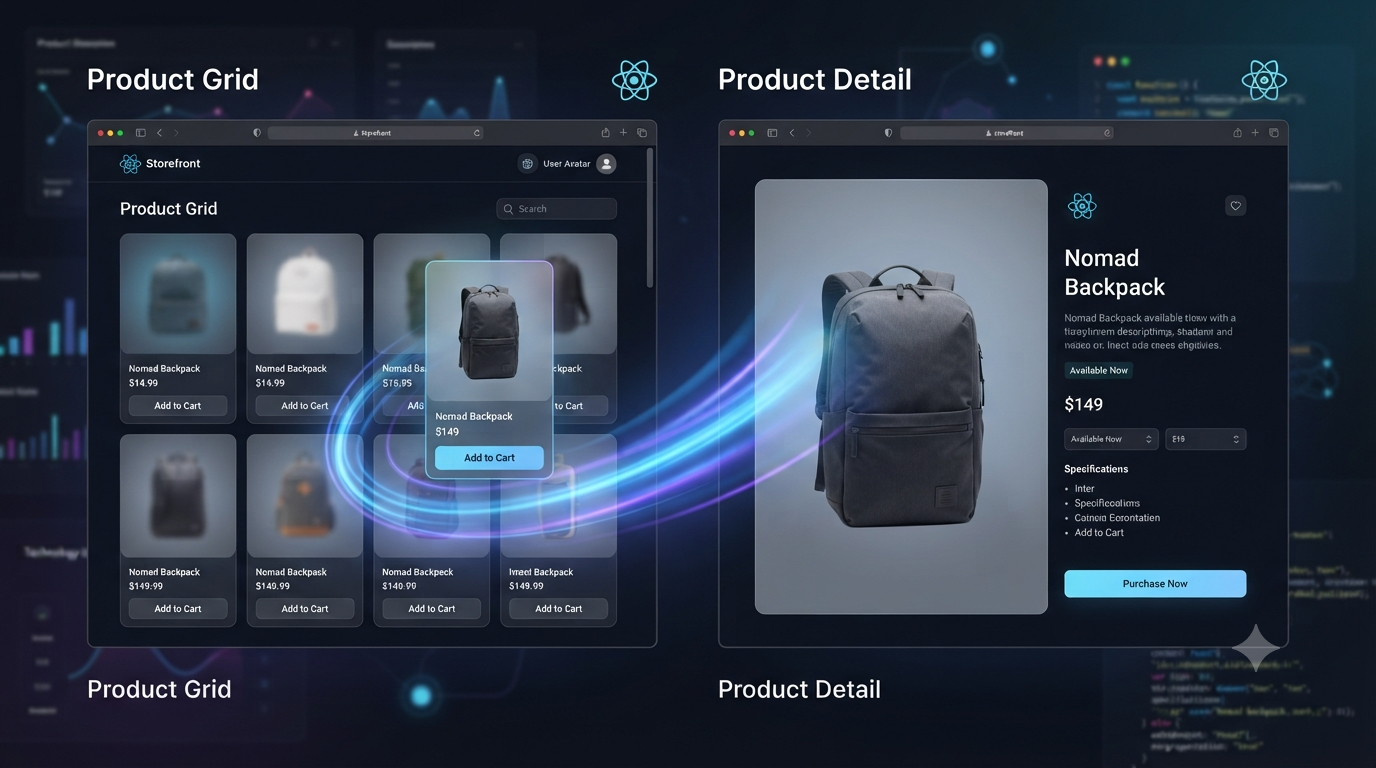
Modern websites are expected to feel fast, interactive and visually smooth. When users navigate between pages, open product details or filter content, the interface should respond naturally instead of abruptly replacing everything on the screen.
Traditionally, React developers have used CSS animations or external libraries to create these experiences. But React 19.3 introduces something interesting: stable View Transitions through the built-in ViewTransition component.
What makes this interesting?
React can coordinate UI changes with browser-powered view transition animations. This makes it easier to create enter, exit, update and shared-element animations without adding a separate animation library just for these effects.
In this tutorial, we will explore React 19.3 View Transitions, understand how they work and build practical examples using CSS and React components.
1. What Are View Transitions?
View Transitions provide a way to animate visual changes between different states of a user interface.
Imagine a product catalogue. A user sees a grid of products, clicks one product and opens its detailed page.
Without transitions, the product grid disappears and the detail page appears immediately. With a shared-element transition, the selected product image can visually move from its original position into the detail page.
Before transition
Product listing or grid view.
After transition
Selected product detail view.
These are conceptual illustrations of the two interface states. The actual animation is handled by React and the browser.
2. What Is New in React 19.3?
React 19.3 was announced on September 9, 2026. One of its important updates was that View Transitions became stable, along with Fragment Refs.
React introduced the ViewTransition component to help developers coordinate UI updates with browser view transitions.
Four important transition types
Animates an element when it is added to the interface.
Animates an element when it is removed.
Animates changes to an existing element.
Connects an element that disappears in one location with a corresponding element that appears elsewhere.
3. How to Use ViewTransition in React
First, make sure your application uses React 19.3 or a compatible release that includes the stable API.
Check your installed versions:
npm list react react-domThe component can be imported directly from React:
import {
    ViewTransition,
    useState,
    startTransition
} from 'react';
Your first ViewTransition example
Consider a simple interface where a user can reveal or hide a component.
import {
    ViewTransition,
    useState,
    startTransition
} from 'react';

export default function App() {
    const [showItem, setShowItem] = useState(false);

    function toggleItem() {
        startTransition(() => {
            setShowItem(previous => !previous);
        });
    }

    return (
        <div>
            <button onClick={toggleItem}>
                Toggle Item
            </button>

            {showItem && (
                <ViewTransition>
                    <div className="card">
                        Hello from React View Transitions!
                    </div>
                </ViewTransition>
            )}
        </div>
    );
}
Why use startTransition()?
React View Transitions are triggered by updates marked as Transitions. Wrapping the state update in startTransition() tells React that this update can be treated as a transition rather than an urgent interaction.
4. Customize Animations with CSS
The default ViewTransition animation uses a smooth cross-fade. You can customize the appearance using View Transition CSS classes.
For example, assign a custom class to the component:
<ViewTransition
    enter="fade-enter"
    exit="fade-exit"
>
    <div className="card">
        Animated content
    </div>
</ViewTransition>
Then define the animation using CSS:
::view-transition-old(.fade-exit) {
    animation: fade-out 250ms ease-in;
}

::view-transition-new(.fade-enter) {
    animation: fade-in 350ms ease-out;
}

@keyframes fade-in {
    from {
        opacity: 0;
        transform: translateY(12px);
    }

    to {
        opacity: 1;
        transform: translateY(0);
    }
}

@keyframes fade-out {
    from {
        opacity: 1;
    }

    to {
        opacity: 0;
    }
}
The exact transition classes and pseudo-elements should be selected according to the React ViewTransition API and the generated browser transition names.
5. Build a Product Catalogue with View Transitions
Let's explore a more practical example. Imagine an online store containing multiple products.
When a visitor selects a product, we want the product image to appear smoothly in the product detail view. When the visitor returns to the catalogue, the transition should feel connected.
Step 1: Create product data
const products = [
    {
        id: 1,
        name: 'Wireless Headphones',
        price: 89,
        image: '/images/headphones.jpg'
    },
    {
        id: 2,
        name: 'Smart Watch',
        price: 129,
        image: '/images/watch.jpg'
    },
    {
        id: 3,
        name: 'Mechanical Keyboard',
        price: 99,
        image: '/images/keyboard.jpg'
    }
];
Step 2: Create the product catalogue
import {
    ViewTransition,
    startTransition,
    useState
} from 'react';

export default function ProductCatalogue() {
    const [selectedProduct, setSelectedProduct] =
        useState(null);

    function openProduct(product) {
        startTransition(() => {
            setSelectedProduct(product);
        });
    }

    function closeProduct() {
        startTransition(() => {
            setSelectedProduct(null);
        });
    }

    return (
        <div>
            {selectedProduct ? (
                <ProductDetails
                    product={selectedProduct}
                    onBack={closeProduct}
                />
            ) : (
                <div className="grid grid-cols-3 gap-4">
                    {products.map(product => (
                        <button
                            key={product.id}
                            onClick={() => openProduct(product)}
                        >
                            {product.name}
                        </button>
                    ))}
                </div>
            )}
        </div>
    );
}
Step 3: Connect the shared product image
function ProductDetails({ product, onBack }) {
    return (
        <div>
            <button onClick={onBack}>
                Back to products
            </button>

            <ViewTransition name={`product-${product.id}`}>
                <img
                    src={product.image}
                    alt={product.name}
                />
            </ViewTransition>

            <h1>{product.name}</h1>
            <p>${product.price}</p>
        </div>
    );
}
Important implementation detail
For a shared-element animation, the matching named ViewTransition must be present in the source and destination UI states. In this example, wrap the corresponding product image in the catalogue with the same name:
<ViewTransition name={`product-${product.id}`}>
    <img src={product.image} alt={product.name} />
</ViewTransition>
Keep each transition name unique among simultaneously rendered elements. Also ensure the transition is triggered by a React Transition update.
6. View Transitions vs Traditional Animation Libraries
Does React 19.3 mean that animation libraries are no longer necessary? No. Each approach solves different problems.
| Feature | React View Transitions | Animation libraries |
|---|---|---|
| Page/UI state transitions | Built for this | Supported |
| Shared element transitions | Supported | Library dependent |
| Complex timeline control | Limited focus | Often stronger |
| Physics-based animation | Not its main purpose | Library dependent |
| Additional dependency | Not required for basic transitions | Usually required |
Use React View Transitions for connected UI state changes and shared-element transitions. Consider a dedicated animation library when you need complex timelines, physics-based motion or highly customized animation sequences.
7. Respect Reduced Motion Preferences
Not every visitor wants animated interfaces. Some users prefer reduced motion because of accessibility needs or personal preferences.
You can respect this preference through CSS:
@media (prefers-reduced-motion: reduce) {
    ::view-transition-group(*),
    ::view-transition-old(*),
    ::view-transition-new(*) {
        animation-duration: 0.01ms !important;
        animation-iteration-count: 1 !important;
    }
}
Keep transitions short, avoid unnecessary movement and make sure your interface remains understandable when animations are disabled.
8. Browser Compatibility and Important Limitations
React's ViewTransition component is designed for the DOM renderer. It coordinates React updates with the browser's View Transition functionality.
Before using it in a production application, check browser support for the required View Transition capabilities and test the actual experience in your supported browsers.
Things to remember
- ⢠ViewTransition is currently intended for React DOM.
- ⢠Updates must be marked as React Transitions to animate.
- ⢠Shared transition names must be unique.
- ⢠Browser support and behavior should be tested.
- ⢠Not every state update needs an animation.
- ⢠Respect reduced-motion preferences.
9. When Should You Use React View Transitions?
E-commerce websites
Animate product images between catalogue listings and detail pages.
Dashboard applications
Create smoother changes between dashboard panels and selected records.
Image galleries
Connect thumbnails with larger image presentations.
Content platforms
Create connected transitions between article cards and reading pages.
Frequently Asked Questions
What is ViewTransition in React 19.3?
ViewTransition is a React component that coordinates visual transitions when React updates the interface. It supports enter, exit, update and shared-element transitions.
Do I need Framer Motion to use React View Transitions?
No. Basic view transitions can be implemented using React's built-in component and CSS. Dedicated animation libraries are still useful for more complex animation requirements.
Is ViewTransition stable in React 19.3?
Yes. The React team announced View Transitions as stable in React 19.3 on September 9, 2026.
Why is startTransition required?
React uses transition-marked updates to determine which updates should participate in View Transitions. Urgent updates are generally reflected immediately.
Can View Transitions replace every animation library?
No. They are particularly useful for visual changes between UI states. Complex timelines, physics-based animation and advanced motion control may still require dedicated libraries.
Final thoughts
Build Interfaces That Feel Connected, Not Just Functional
React 19.3 View Transitions give frontend developers a powerful way to make UI changes feel more natural. Instead of abruptly replacing interface elements, you can create visual continuity between application states.
Start with simple enter and exit animations, then experiment with shared-element transitions in product catalogues, galleries and dashboards.
You do not need to animate everything. Use transitions where they improve understanding and make navigation feel more natural.
Better transitions. Better experiences. Better interfaces.